Hello,
Well that was an example of what you could do, I was not expecting a Copy & Paste, perhaps I should have mentioned that. That error means you needed a ${end} at the template.
I’m going to demonstration the Alerts for you, perhaps this will help.
This will be an Example but your environment is probably different then mine. Keep an eye on tic boxes, etc…
In this example Im going to get the host_names from those messages by count and send a notification alert in 24 hours with 5 message backlogs.
1.I created a stream called Beats Filter I also removed it from “All message” In my case to save space.

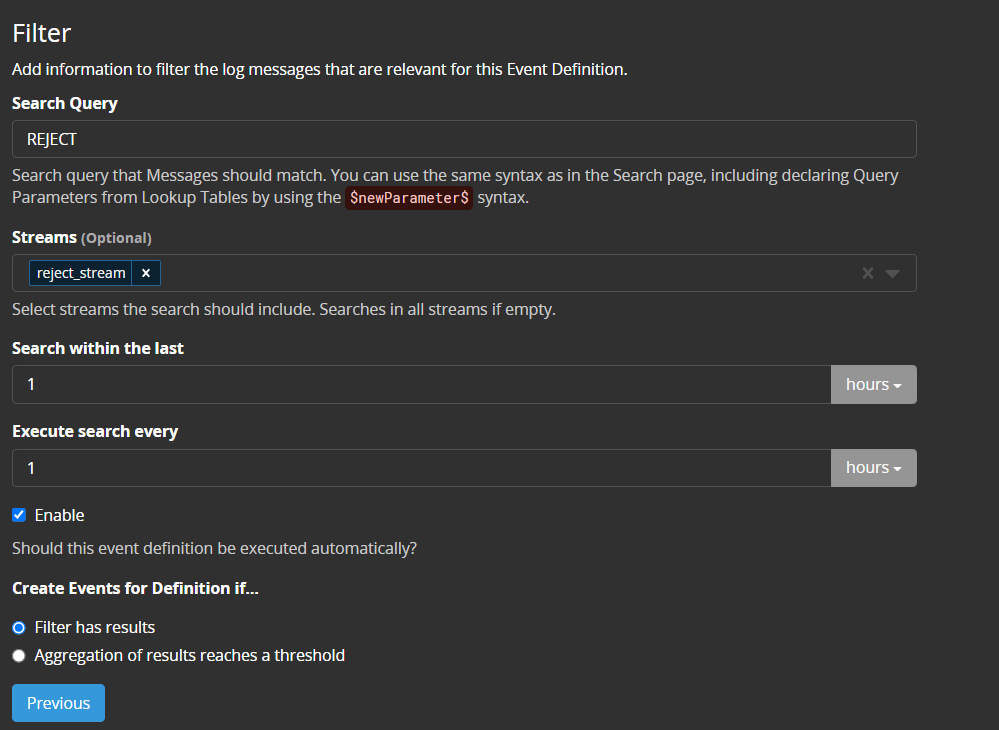
2.Created event definition using the filter, Notice the quotes && the filter Preview? Its to insure I have correct configurations made.
3.I want to be alerted if more then 1 messages hits this stream that has “The Network Setup Service service entered the stopped state” within those messages. Which would be greater the “0” meaning if one messages arrives, Alert.
4.Notification template, what I need to get is the fields that has an IP address or Hostname. As shown below I’m going to use host_name field
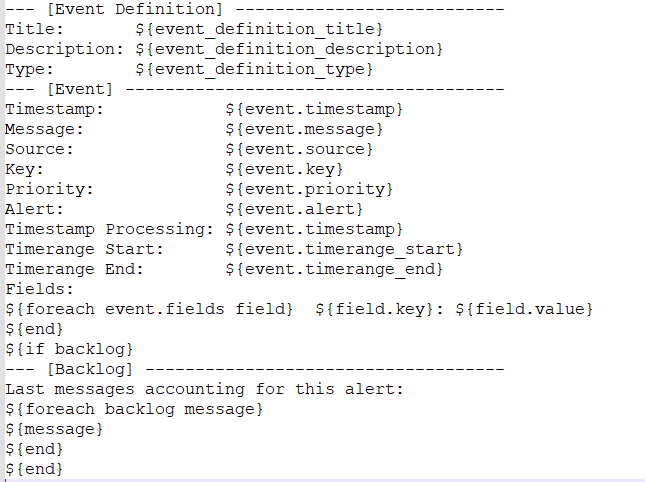
5.Create my custom template. For this demonstration called " Beat Filter". I will be remove the HTML section of my Email notification template and just have the configurations shown.
--- [Event Definition] ---------------------------
Title:       ${event_definition_title}
Description: ${event_definition_description}
Type:        ${event_definition_type}
--- [Event] --------------------------------------
Timestamp:            ${event.timestamp}
Message:              ${event.message}
Source:               ${event.source}
Key:                  ${event.key}
Priority:             ${event.priority}
Alert:                ${event.alert}
Timestamp Processing: ${event.timestamp}
Timerange Start:      ${event.timerange_start}
Timerange End:        ${event.timerange_end}
Fields:
${foreach event.fields field}  ${field.key}: ${field.value}
${end}
${if backlog}
--- [Backlog] ------------------------------------
Last messages accounting for this alert:
${foreach backlog message}
hamzasaeed5594 was here:  ${message.fields.host_name} <<<---- Here is my new configuration.
${end}
${end}
6.Back to my Event definition by adding the new Notification template. Noticed the Grace Period and backlogs section?
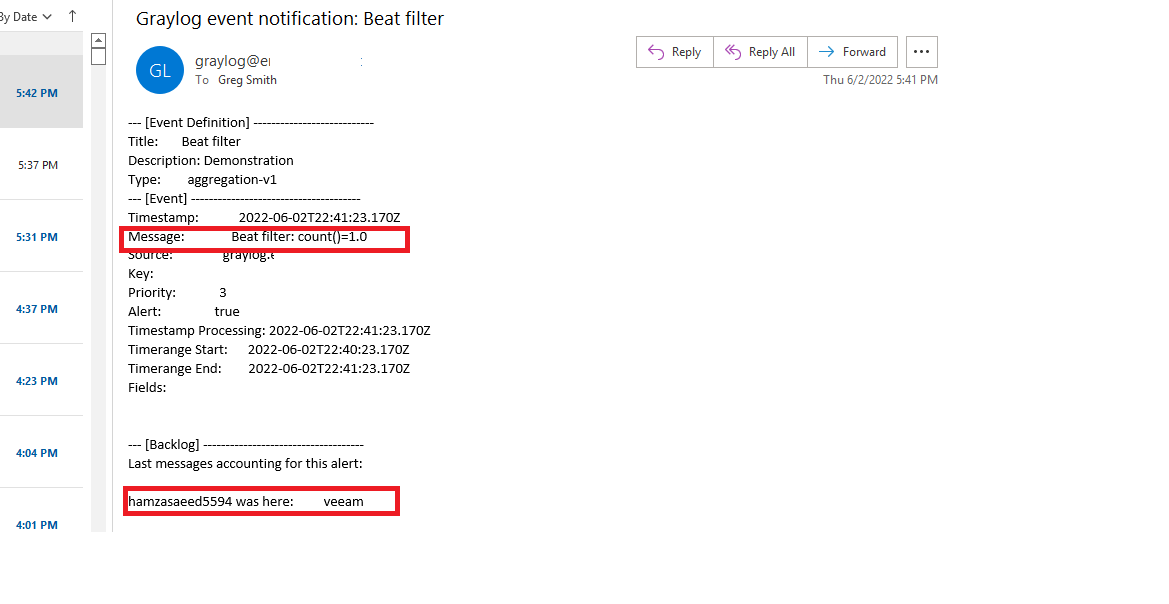
7.Email Results
Conclusion:
I creates a stream to fillter out specific logs, then Create a search filter in the event definition to filter even further and added a “COUNT” greater then “0” meaning more them one of those messages.
On the notification side I have a grace period for 24 hour with 5 backlogs for this example.
Configured my Notification template to only show “host_name” and from the last picture it also shows the count on how many message I have.
hope that helps